
Features
Teleprompter speed: set words per minute or fit your script to a time
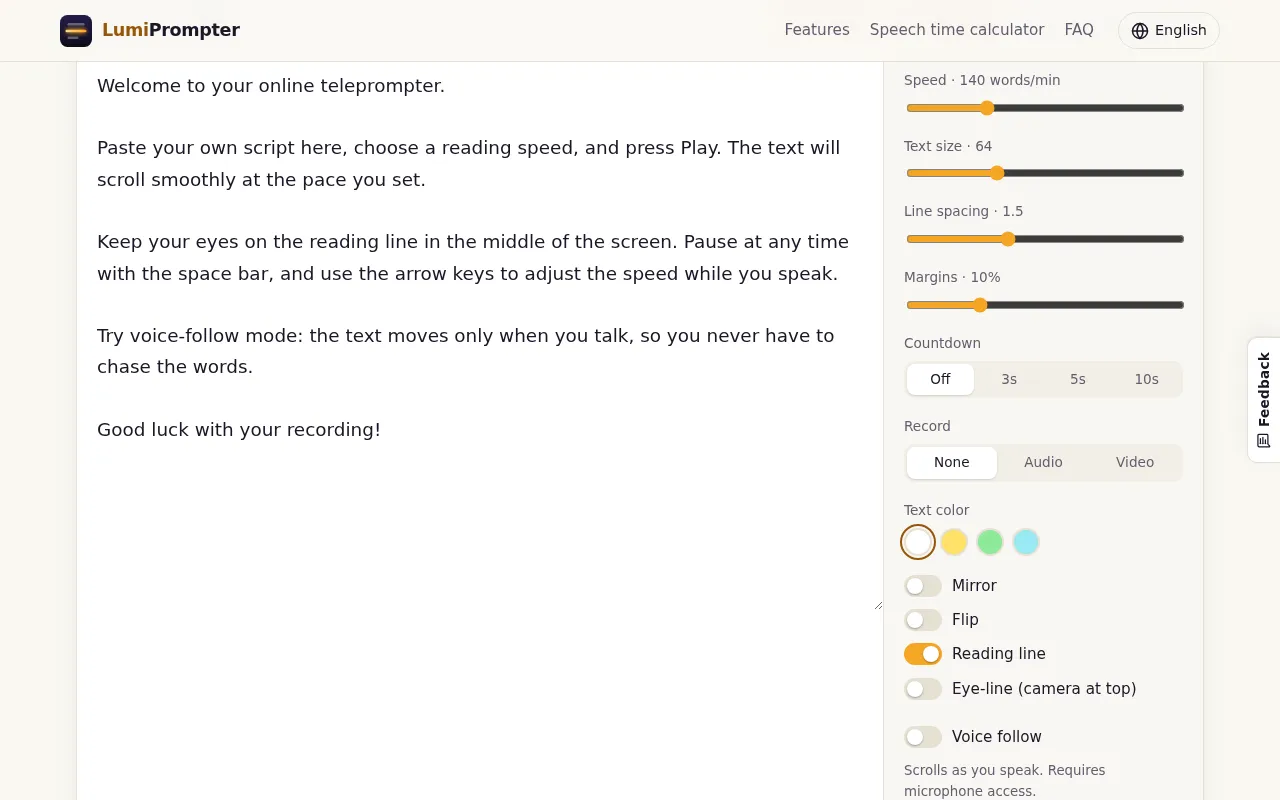
A teleprompter should scroll at your natural speaking pace, which for most people is 110 to 170 words per minute, with 140 a good place to start. In LumiPrompter you set the speed in words per minute and see at once how long your script will last, or you type a target duration and the prompter works out the speed. You can fine-tune it with the arrow keys while you read.
Last updated:
How fast should a teleprompter scroll?
As fast as you speak, not faster. If the text runs ahead, you rush and swallow words; if it lags, you wait and your delivery sounds flat. Most people read aloud comfortably between 110 and 170 words per minute, and 140 words per minute, LumiPrompter’s default, suits a calm presentation.
LumiPrompter sets the scroll speed in words per minute instead of an abstract 1 to 10 scale. That means the speed keeps its meaning when you change the text size, the line spacing or the screen: 140 words per minute scrolls 140 words past the reading line every minute, whether the letters are small on a laptop or huge on a TV.
Chinese and Japanese scripts are timed in characters per minute instead. The app detects them on its own and switches the unit, with a range of 80 to 800 characters per minute.
Start at 140, read the first paragraph aloud, then press ↑ or ↓ until the words arrive just as you need them. That is your speed for this script.
What speed should I use for news, presentations or YouTube?
The right speed depends on what you read and who listens. The ranges below are rules of thumb, not standards: use them as a first setting, then adjust to your own voice. Content with a lot of figures, names or technical terms needs a slower speed than a casual intro.
| Use case | Words/min | Chinese chars/min | Japanese chars/min |
|---|---|---|---|
| Reading in a second language, beginners | 100–120 | 160–200 | 220–260 |
| Speeches, ceremonies, keynotes with pauses | 110–130 | 180–220 | 250–280 |
| Presentations, training, e-learning | 130–150 | 220–260 | 280–320 |
| Corporate video, talking head to camera | 140–160 | 240–280 | 300–330 |
| YouTube, explainers, podcasts | 150–170 | 260–300 | 320–350 |
| News reading, promos in tight slots | 160–190 | 280–320 | 340–380 |
How are speed and duration linked?
The estimated duration is simply the number of spoken words divided by the speed. A 420-word script lasts 3:00 at 140 words per minute and 2:28 at 170. The header of the editor shows both numbers, for example “420 words · 3:00”, and updates as you type.
Only words you actually say are counted. The estimate leaves out:
- stage directions such as
[SMILE]or((WAVE)), shown as chips but never read; - notes on lines starting with
//, visible only in the editor; - section lines
---and formatting marks like**bold**or==highlight==; - pause cues: a timed
[PAUSE 3s]holds the scroll but is not added to the estimate, and[PAUSE]waits until you resume.
Scripts with several timed pauses run longer than the estimate: add the pause seconds to the duration yourself. The script format guide lists every cue.
How do I make a script fit an exact time?
When a video slot, a speech or an ad has a fixed length, let the prompter calculate the speed for you with Fit to duration.
- Paste or import your script into the editor.
- Look at the header: it shows the word count and the estimated duration at the current speed.
- Click the duration (its tooltip reads Fit to duration) and type the target time as minutes and seconds, for example
2:30. A number without a colon counts as seconds. - Press
Enteror click elsewhere. The Speed slider jumps to the speed you need: 420 words in 2:30 gives 168 words/min. - Check that speed against the table above. If it is far above your comfortable pace, cut words instead of reading faster.
- Press Play. The countdown runs, then the text scrolls and the stage shows the elapsed and remaining time.
The speed stops at 40 and 400 words per minute, so a very short script cannot be stretched to fill a long slot. To plan a script before you write it, the words-to-minutes calculator tells you how many words fit in a given time.
Can I change the speed while reading?
Yes. Press ↑ to go faster and ↓ to go slower: each press changes the speed by 10 words per minute (20 characters per minute for Chinese and Japanese). The on-screen Speed buttons do the same on a touch screen, and the keys also work in the floating window and on a second screen.
The text keeps its position when the speed changes; only the remaining time is recalculated. Press Space to pause and resume at any moment. With a clicker or a foot pedal you can also pause and scroll back hands-free, see teleprompter remote control.
Before the text starts, a countdown gives you time to look at the camera and breathe. Choose Off, 3s, 5s or 10s under Countdown in the settings; the default is 3 seconds. It runs when you start or restart a take, not when you resume from a pause.
Fixed speed or voice follow?
A fixed speed is predictable: the script ends exactly when the estimate says, which is what you want for an ad, a timed slot, a music bed or a recording with an operator. The cost is that you have to keep up with the text, and every pause you take puts you behind.
With voice follow the speed setting no longer drives the scroll: the text moves as you speak and waits when you stop. It suits speeches, presentations and takes where you pause or improvise. It needs speech recognition, available in Chrome, Edge and Safari but not in Firefox.
How do I find my own reading pace?
Read the whole script once with voice follow on. When you leave the stage, the Last session card shows your reading time, Your pace in words per minute and the number of pauses. Time spent paused is not counted in your pace.
If you read at least 30% of the script and your pace differs from the current speed by more than 5%, a Use my pace button appears. One click sets the Speed slider to your real pace for the next take. More on this in your real speaking pace.
Frequently asked questions
- What is a good teleprompter speed?
- For most people 130 to 150 words per minute is comfortable, and 140 is a good default. Go down to about 110 for formal speeches or a second language, and up to about 170 for YouTube or podcast style delivery.
- How many words per minute does a teleprompter scroll?
- As many as you set. In LumiPrompter the speed goes from 40 to 400 words per minute (the slider moves in steps of 5), with 140 by default. Chinese and Japanese scripts use characters per minute, from 80 to 800.
- How do I make a teleprompter script last exactly 2 minutes?
- Click the duration in the editor header, type 2:00 and press Enter. LumiPrompter sets the speed that makes your script last 2 minutes. If that speed is too fast to read comfortably, shorten the script.
- Does the text size change the scrolling speed?
- No. The speed is measured in words per minute, so changing the text size, line spacing or margins changes how far the text moves, not how long the script takes.
- Are pauses and stage directions included in the duration?
- No. Stage directions, notes and section lines are not counted, and timed pauses like [PAUSE 3s] are not added to the estimate. Add the pause time yourself if your script uses several of them.
- Can I speed up the teleprompter while I am reading?
- Yes. Press the up arrow to go 10 words per minute faster and the down arrow to go 10 slower, or use the on-screen Speed buttons. The text keeps its place.