
Features
Import your script into the teleprompter from Word, Google Docs or subtitles
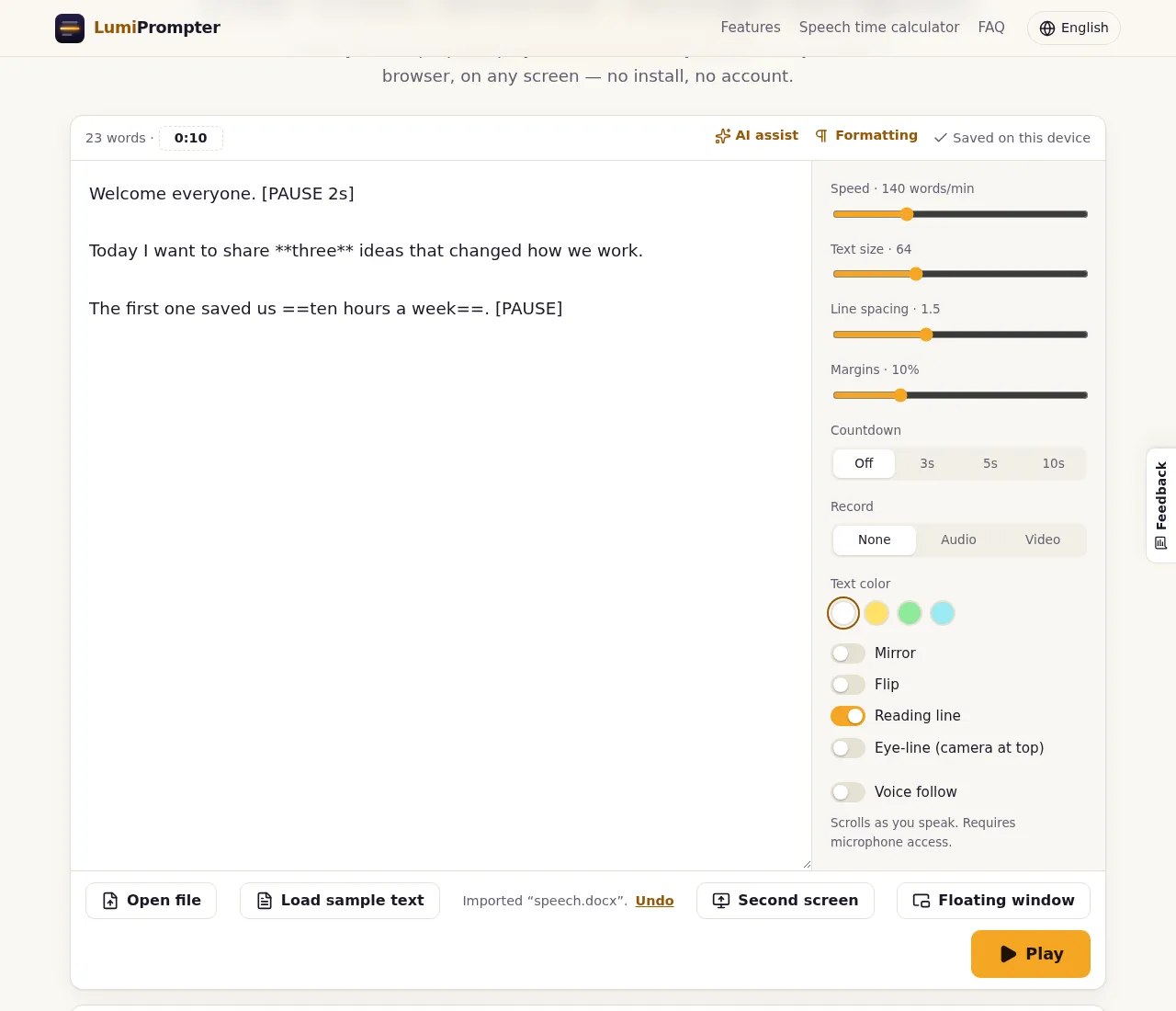
To import a Word document into LumiPrompter, click Open file or drag the .docx onto the editor: the text appears ready to prompt, with bold, italics and headings kept. The same works for Google Docs downloads, LibreOffice .odt, plain text, Markdown, HTML and .srt or .vtt subtitles, up to 10 MB per file. The file is read inside your browser and never uploaded.
Last updated:
Which file formats can you import into a teleprompter?
LumiPrompter reads seven kinds of file directly. Each one is converted into script text with the app’s own markup, so the emphasis you set in your word processor still shows while you read. Anything that is never read aloud, such as images, timestamps or code, is left out.
Formatting arrives as markup: bold becomes **text**, italic _text_, highlighting ==text==, and a section break is a line with ---, which you can jump to while prompting. The teleprompter script formatting guide explains every mark.
| Format | Kept | Converted or removed |
|---|---|---|
Word .docx | Paragraphs, line breaks, bold, italic, highlighting | Title and Heading styles start a new section; bullets, images, headers, footers and comments are dropped; tracked changes come in as accepted |
LibreOffice .odt | Paragraphs, line breaks, headings | Headings start a new section; bold and italic are not carried over |
Plain text .txt | Every word and line break | Runs of blank lines collapsed to one; UTF-8, UTF-16 and older Windows encodings detected |
Markdown .md | Bold, italic, paragraphs, list items as lines | Headings and --- rules start sections; links keep their text; images and code blocks removed |
Web page .html | Bold, italic, <mark> highlights, line breaks | Headings and <hr> start sections; scripts, styles, navigation and footers ignored |
Subtitles .srt, .vtt | The spoken text | Cue numbers, timestamps and tags removed; a gap of 2 seconds or more starts a new paragraph |
How do you import a Word document into LumiPrompter?
There are several ways in, and they all do the same thing. One file is imported at a time: if you drop several, only the first is used. You can also copy a file in your file manager and paste it into the editor with Ctrl+V (Cmd+V on a Mac).
- Open the online teleprompter; the editor is the first thing you see.
- Click Open file below the editor and pick your
.docx, or drag the file from your desktop onto the editor and release it when “Drop the file to import it” appears. - Check the confirmation next to the buttons, for example “Imported “keynote.docx”.” The imported text replaces what was in the editor.
- Not what you expected? Click Undo in that message to get your previous script back. Undo stays until you import another file, and it also discards edits made since the import.
- Look over the text, then press Play.
If you installed LumiPrompter as an app from Chrome or Edge on a computer, you can open a .docx or .txt straight from your file manager with Open with → LumiPrompter. On Android the installed app also shows up in the share menu; see teleprompter on phone and tablet.
How do you get a script out of Google Docs, Pages, Notion or Final Draft?
LumiPrompter opens files, not online documents, so save a copy in a supported format first. Downloading a copy leaves your original untouched, and you can always paste text into the editor instead.
- Google Docs: File → Download → Microsoft Word (.docx). Bold, italic and headings come through. Pick Plain text (.txt) if you want text only.
- Word for the web or OneDrive: File → Save As → Download a Copy.
- Apple Pages: File → Export To → Word, then import the
.docx. - Notion: open the page’s ••• menu → Export → Markdown & CSV. Notion downloads a .zip; unzip it and import the
.mdfile inside. - Final Draft and other screenwriting apps:
.fdxfiles can’t be read. Save or export the script as plain text (.txt), which keeps the line layout. - Old Word
.docand.rtffiles: open them in Word, LibreOffice or Google Docs and save them as.docx.
Can you import a PDF into a teleprompter?
Not directly: LumiPrompter doesn’t read PDF files, and dropping one shows “This file type isn’t supported.” A PDF stores characters placed on a page rather than paragraphs, so automatic extraction often breaks lines in the middle of sentences anyway.
The quickest workaround is copy and paste: open the PDF, select all the text, copy it and paste it into the editor. If every printed line ends with a line break, open the PDF in Word, or in Google Drive with right-click → Open with → Google Docs, which rebuilds the paragraphs, then download it as .docx.
A scanned PDF is a picture with no selectable text. Google Docs runs text recognition when it opens a PDF, so the Open with → Google Docs route works for scans too. Proofread the result before you go on camera.
How do you turn SRT or VTT subtitles into a teleprompter script?
Import the .srt or .vtt file like any other. LumiPrompter keeps only the words: cue numbers, timestamps, the WEBVTT header, NOTE and STYLE blocks and tags such as <i> are removed, and the short subtitle lines are joined into normal sentences.
Paragraphs follow the timing: 2 seconds or more of silence between two cues starts a new paragraph. In the example below, the first two cues become one paragraph and the third, after a 3-second gap, starts the next. Use it to re-record a video, turn an auto-generated transcript into a script or read a translated subtitle file as a voice-over.
1
00:00:01,000 --> 00:00:03,200
Welcome back to the channel.

2
00:00:03,300 --> 00:00:05,000
Today we test three microphones.

3
00:00:08,000 --> 00:00:10,500
Let’s start with the cheapest one.
Is your file uploaded when you import it?
No. The file is opened and converted by code running in your browser and is never sent to LumiPrompter or anyone else. Word and LibreOffice files are zip archives: LumiPrompter unpacks them with the browser’s built-in decompression and reads the text inside, with no cloud converter or third-party library.
The imported script is then saved in your browser’s local storage, like anything you type, so it’s still there the next time you open the app on that device. The only thing downloaded is the converter code itself, the first time you import a file. That makes import suitable for confidential material such as unreleased announcements.
Why won’t my file import, and how do you fix it?
When an import fails, LumiPrompter shows one of three messages next to the Open file button and leaves your current script untouched. If a plain-text file imports with odd symbols in place of accented letters, it was saved in an unusual encoding: re-save it as UTF-8 in your text editor.
| Message | Usual cause | Fix |
|---|---|---|
| This file type isn’t supported. | PDF, old .doc, .pages, .fdx or an image | Export to .docx or .txt, or copy and paste the text |
| This file is too large (10 MB maximum). | A Word file full of photos or embedded media | Save it as .txt, or delete the images and save a copy |
| This file couldn’t be read. Is it a valid document? | Password-protected, damaged or renamed file, or a document with no text | Remove the password, re-save it from Word or Google Docs, or check it really contains text |
What should you do after importing a script?
A document written for paper rarely reads well aloud from a screen as is. A few minutes of preparation before the first take saves retakes later.
- Clean up: delete slide numbers and long tables, turn reminders into lines starting with
//(visible in the editor only), and add[PAUSE]where you want to breathe. - Check the length: the word count and estimated duration sit above the script. At an average 140 words per minute, a 1,000-word document takes about 7 minutes. Type a target time in the duration to set the speed, or read how fast a teleprompter should scroll.
- Plan before you write: the words-to-minutes calculator tells you how long a script should be for a given slot.
- Rewrite or translate: in Chrome on a computer, on-device AI assist can make imported text more conversational, fit it to a length or translate it, without sending it anywhere.
Frequently asked questions
- Can I import a Word document into a teleprompter?
- Yes. In LumiPrompter, click Open file or drop the .docx onto the editor and the text is ready to prompt, with bold, italics and headings kept. It is free and needs no account.
- How do I put a Google Doc into a teleprompter?
- Download it first: in Google Docs choose File, Download, Microsoft Word (.docx), then open that file in LumiPrompter. You can also select all, copy and paste the text into the editor.
- Can a teleprompter open PDF files?
- LumiPrompter can’t import PDF files directly. Copy the text from your PDF viewer and paste it into the editor, or convert the PDF to .docx with Word or Google Docs first.
- What is the maximum file size for import?
- 10 MB per file. A text script is far smaller than that; only documents full of images come close, and saving them as .txt solves it.
- Can I use an SRT subtitle file as a teleprompter script?
- Yes. Timestamps and cue numbers are removed, the lines are joined into sentences, and a pause of 2 seconds or more between cues starts a new paragraph.
- Is my document uploaded to a server?
- No. The file is read and converted in your browser, and the script is stored only on your device.
- How do I undo an import?
- Click Undo in the confirmation message next to the Open file button. It restores the script you had before the import.