
Features
AI teleprompter that rewrites your script on your own computer
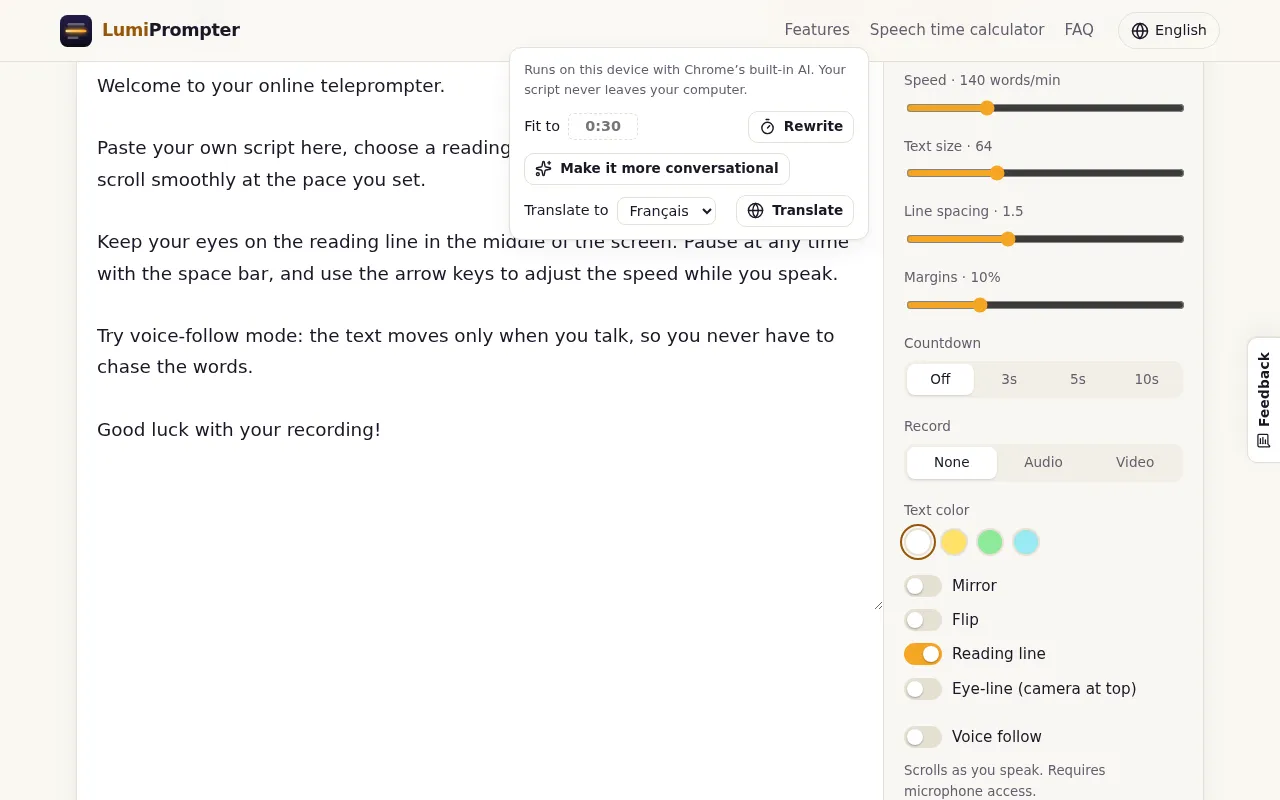
LumiPrompter’s AI assist rewrites your teleprompter script to fit a target duration, makes it more conversational or translates it, using the AI built into Chrome on your own computer. Your script is never sent to a server, and it’s free with no account. Open AI assist above the editor, pick an action and the new text streams straight into your script.
Last updated:
What can the AI assist do with a teleprompter script?
AI assist has three actions. Each one takes the whole script in the editor, rewrites or translates it, and puts the result back in the same place. Your markup survives: the model is told to keep cues like [PAUSE], **bold**, --- section lines and // notes exactly as written.
| Action | What it does | Languages and requirements |
|---|---|---|
| Fit to + Rewrite | Rewrites the script to about the number of words that fills the duration you type, at your current speed, keeping the key messages, structure and tone. | Script in English, Spanish, French or Japanese; Chrome Prompt API (Gemini Nano) |
| Make it more conversational | Rewrites in a natural spoken style that is easier to read aloud, at a similar length. | Same as Rewrite |
| Translate to + Translate | Translates paragraph by paragraph into another language, then switches the script’s speech language to match. | Any pair of the 8 site languages the Chrome Translator API supports |
How do I shorten a script to fit a set time with AI?
Fit to turns a time into a word target: at 140 words per minute, 2:00 means about 280 words. The field suggests about 80% of the current reading time, rounded to 30 seconds, so a 3-minute script proposes 2:30.
- Paste or type your script in the editor and set the speed you plan to read at. The word count and reading time appear above the text.
- Click AI assist above the editor.
- In Fit to, type a duration such as
2:00or90(seconds), or keep the suggestion. - Click Rewrite. The new version is written into the editor as it is generated, with a Writing… status and a Cancel button.
- Read the result. If you prefer the original, click Undo to get it back.
The model aims for a word count, so the result is close rather than exact. Check the new reading time above the editor and fine-tune with the speed, as explained in teleprompter speed and fit to time.
Which browsers and computers support on-device AI?
AI assist uses two APIs built into Google Chrome: the Prompt API, which runs the Gemini Nano model, for rewriting, and the Translator API for translation. LumiPrompter checks for them when the page loads. If neither is available, for example in Firefox, Safari or on a phone, the AI assist button simply doesn’t appear and the rest of the teleprompter works as usual.
The first time you use an action, Chrome may need to download the model. The panel shows “Downloading the on-device AI model… 37%” while it loads; afterwards it stays on your computer and later runs start right away.
- Desktop Chrome on Windows, macOS, Linux or a Chromebook Plus. Translation needs Chrome 138 or later.
- Google’s documentation for Gemini Nano lists about 22 GB of free disk space, and either a GPU with more than 4 GB of video memory or 16 GB of RAM with 4 CPU cores.
- An unmetered internet connection for the one-time model download. After that, rewriting works offline.
If the Rewrite buttons are missing but Translate is there, your script language isn’t one the Prompt API writes, or your computer doesn’t meet the model requirements.
Which languages can it rewrite and translate?
The script language is the Speech language setting, which follows the site language by default (English here) and can be changed next to Voice follow. Rewriting is offered only when that language is English, Spanish, French or Japanese, the languages Chrome documents for the Prompt API. For Italian, Russian, Hindi and Chinese scripts the panel shows translation only.
Translate to lists the other seven site languages: English, French, Spanish, Italian, Russian, Hindi, Chinese and Japanese. Each language pair may need its own small download the first time. After a translation, the Speech language switches to the new language so voice follow and the word or character count match the new text.
Is on-device AI more private than cloud AI tools?
Yes, for your script. Most AI writing tools send your text to a remote server, where it is processed under that service’s privacy policy and sometimes kept. With AI assist, the model runs inside Chrome on your computer, so the script never leaves it and LumiPrompter has no server that could see it.
The trade-off is size: a model that fits on a laptop is smaller than large cloud models. It handles focused edits like trimming and rephrasing well, but it’s less suited to long creative writing. For a confidential keynote, an unreleased product script or an internal update, keeping the text local is often the deciding factor.
What are the limits of an AI script rewriter?
AI assist edits the script you give it. It doesn’t write a script from a blank prompt, and it has no free-form instruction box: the three actions are the whole feature.
- Long scripts can exceed what the on-device model handles in one go. If you see “The on-device AI couldn’t complete this”, run it again or work on a shorter part.
- Always reread the result before recording. The model can drop a fact, soften a claim or change a name, and translations can move or lose inline cues.
- Undo restores the text from before the last AI action. It disappears when you start another action, so copy a version you like before trying more.
- Cancel stops the job and puts your original text back immediately.
- There is no AI eye-contact correction of your video. To look at the lens while reading, see eye contact on camera.
- Voice follow is not this AI: it uses your browser’s speech recognition, explained in the voice-activated teleprompter guide.
How do I use AI assist in a script workflow?
AI is most useful as one step between your draft and the take. A typical sequence for a talking-head video or a speech:
- Draft the script yourself, then check its length with the speech time calculator.
- Use Fit to and Rewrite if it runs long, or Make it more conversational if it reads like an essay.
- Add pauses, emphasis and sections by hand, following how to format a teleprompter script.
- Rehearse with Voice follow so the text waits when you pause.
- Measure your real pace with the speaking speed test and set the speed to match, so the fitted length holds on the day.
Fit the script to your real speaking pace, not the default 140 words per minute, or a “2-minute” script may run 2:20.
Frequently asked questions
- Is there a free AI teleprompter?
- Yes. LumiPrompter’s AI assist is free, needs no account and runs on Chrome’s built-in AI on your computer, so there is no per-use cost or credit limit.
- Can AI shorten my script to fit a specific time?
- Yes. Type a duration in Fit to, such as 2:00, and click Rewrite. The model rewrites the script to about the word count that fills that time at your current speed.
- Does LumiPrompter send my script to an AI server?
- No. The model runs inside Chrome on your device, so the script never leaves your computer. Only the one-time model download comes from Google.
- Why don’t I see the AI assist button?
- Your browser doesn’t offer Chrome’s built-in AI. Use a recent desktop Chrome on a computer that meets the model requirements; on phones, Firefox and Safari the button is hidden.
- Can the AI write a teleprompter script from scratch?
- No. AI assist only rewrites, shortens or translates the script you already have. Write a first draft yourself, then use it to fit and polish.
- Does the AI work offline?
- Yes, once the model is downloaded. The first use needs an internet connection for the download; after that, rewriting runs locally without one.