
Features
Teleprompter with recording: read your script and film yourself
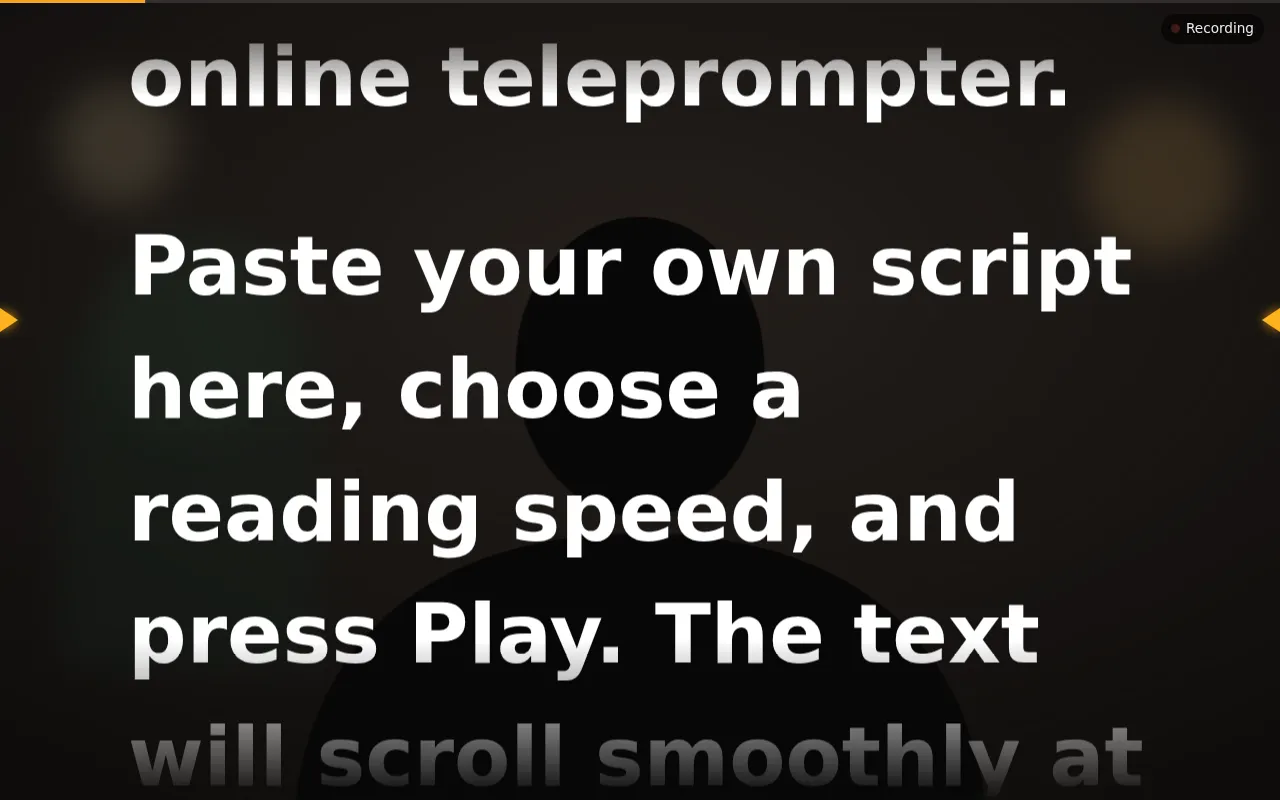
LumiPrompter is a free online teleprompter that records your webcam or microphone while your script scrolls, then lets you download the take as a video or audio file. There is no account and no watermark, and the recording is made and stored in your browser, never uploaded. You can even show your camera image behind the text to check your framing as you read.
Last updated:
How do you record yourself reading a script?
LumiPrompter records with the MediaRecorder feature built into your browser, so there is nothing to install. Recording follows the transport buttons: it starts when the text starts scrolling and ends when you stop.
- Paste your script in the editor, or import a Word or subtitle file.
- In the settings, set Record to Video (or Audio). With Video, the Camera background toggle appears; it is on by default.
- Press Play. The prompter opens and your browser asks for camera and microphone access: allow it.
- Press Play again, or
Space. After the 3-second countdown, the text scrolls and the Recording badge appears. - Press Pause (
Space) to pause both the text and the recording. Paused time is left out of the file. - Press Stop or
Escwhen you are done. You return to the editor and the take appears under Recordings, ready to play, download or delete.
Recording keeps running after the last line has scrolled by, so you can finish your sign-off before pressing Stop. Restart goes back to the top without ending the take.
Audio or video: which Record mode should you choose?
The Record setting has three positions. Your choice is saved, so the next session starts the same way.
| Mode | What is captured | File type | Best for |
|---|---|---|---|
| None (default) | Nothing; camera and microphone stay off | No file | Live reading, calls, rehearsing for a stage |
| Audio | Microphone only, with echo cancellation and noise suppression requested | .m4a (MP4 audio) or .webm | Voice-overs, podcasts, audiobook tests, speech practice |
| Video | Front camera, up to 1920×1080 if your webcam allows it, plus microphone | .mp4 or .webm | YouTube videos, video CVs, course lessons, social clips |
What does the camera background show, and is the file mirrored?
In Video mode, Camera background shows your live webcam image behind the script. The Camera brightness slider sets how visible it is, from 15% (dim, so the text stands out most) to 100% (the full, sharp camera image). It starts at 35%, and a light shadow under the letters keeps the text readable; above 70%, a note reminds you that a bright image can make words harder to read. Turn it off if you find it distracting; the video still records.
The preview behind the text is not mirrored: it shows exactly what the downloaded file will contain, the way your audience will see you. The Mirror and Flip settings only change the text, for beam-splitter glass rigs, never the camera image or the recording.
The file contains only your camera and microphone. The scrolling text is not burned into the video, so viewers never see your script.
Where are recordings saved, and do they survive a reload?
Each take is saved in your browser’s local database (IndexedDB) on the device you used. It survives a page reload, closing the tab and working offline, and it is never sent to a server: LumiPrompter has no upload at all.
The Recordings list shows every take with its date, duration and a player. Download saves a file named like lumiprompter-2026-10-14T09-30-00.mp4. Delete removes it from the browser for good.
- Recordings are per browser and per device: a take made in Chrome is not visible in Safari or on your phone.
- Clearing site data, or a private window being closed, deletes the stored takes.
- Browsers limit how much a site can store, and video adds up fast. As a rough guide, count tens of megabytes per minute of HD video.
Treat the Recordings list as a holding area: download the takes you want to keep and delete the rest to free space.
How do you get a good-looking take?
Browser recording uses your webcam and microphone as they are, so the room matters more than any setting. These rules of thumb make the biggest difference.
- Light: face a window or a lamp; avoid a bright window behind you, which turns you into a silhouette.
- Framing: raise the laptop so the lens is at eye level, and leave a little space above your head.
- Microphone: a headset or USB mic beats the built-in one. Close the window and mute notifications.
- Eye contact: turn on eye-line mode so the reading line sits just under the webcam and your eyes stay near the lens.
- Reading distance: keep the text narrow and large so your eyes move less; see the font size guide.
Record a 20-second test first and play it back with headphones. Fixing light or sound now saves a whole session.
What can you do with the recorded file?
The download is a normal video or audio file. Trim the start and end, add captions or B-roll in any editor: CapCut, DaVinci Resolve, iMovie, Clipchamp, Premiere Pro or Audacity for audio. Then upload it wherever you publish; for channel workflows, see the teleprompter for YouTube guide.
Safari and recent Chrome and Edge versions generally produce MP4, which every editor and platform accepts. Firefox records WebM. YouTube accepts WebM directly, but some editors, especially on iPhone and older Macs, do not open it.
To convert a WebM file, open it in a free tool such as HandBrake or VLC and export MP4, or use FFmpeg on the command line:
ffmpeg -i take.webm -c:v libx264 -c:a aac take.mp4How do you use recording to rehearse?
Watching yourself once teaches more than reading the script ten times. Record a full take, then play it back and look for three things: where your eyes leave the lens, where you rush, and where you sound like you are reading.
When you press Stop, the Last session report also shows your real speaking pace and pauses. Use it to set the scroll speed for the next take, or learn more with the speaking speed test.
Keep two or three takes and compare them in the Recordings list: the duration next to each one shows at a glance whether you sped up under pressure. For speeches given live, the same routine works with Record set to Audio; the public speaking guide has more rehearsal tips.
What are the limits of browser recording?
Recording works in current versions of Chrome, Edge, Safari and Firefox on computers, Android, iPhone and iPad. On a phone or tablet it uses the front camera, and long videos fill storage quickly, so download and clear takes often; see the phone and tablet guide.
- One camera and one microphone at a time, as chosen in your browser’s site settings.
- No built-in editing, filters or multi-take merging: use a video editor for that.
- If access was denied, the prompter shows a message; allow the camera and microphone in the address bar’s site settings and try again.
- To record your screen or slides, use a dedicated recorder like OBS with the Floating window on top.
What you need: a microphone
When you record while you read, sound is what people notice first. Any external microphone close to your mouth beats the one in a laptop or webcam, which also picks up the room and the keyboard. Choose by where you record: at a desk, a USB microphone; standing or moving, a clip-on one. The browser lists it like any other microphone.
- USB microphonePlugs straight into the computer with no driver. A dynamic model picks up less echo from a bare room than a condenser one.See on Amazon
- Wireless clip-on (lavalier) microphoneStays at the same distance from your mouth when you move. Check the connector your device needs: USB-C, Lightning or 3.5 mm.See on Amazon
- Pop filterSoftens the hard “p” and “b” sounds you get when speaking close to a desk microphone, for very little money.See on Amazon
As an Amazon Associate, LumiPrompter earns from qualifying purchases. We don’t test or rank products: the examples show what to look for.
Frequently asked questions
- Is there a free teleprompter app with video recording?
- Yes. LumiPrompter records your webcam while the script scrolls, for free, with no account and no watermark.
- Does LumiPrompter add a watermark to recordings?
- No. The downloaded file is exactly what your camera and microphone captured, with no logo or overlay.
- Are my recordings uploaded anywhere?
- No. Recordings are created and stored in your browser on your device and are never sent to a server. Only you can download or delete them.
- Why is my recording a WebM file?
- Your browser does not support recording to MP4, which is the case in Firefox. YouTube accepts WebM, and free tools like HandBrake or VLC convert it to MP4.
- Is the script visible in the recorded video?
- No. Only your camera image and sound are recorded. The text and the camera background preview are shown on your screen only.
- Can I record only my voice while reading a script?
- Yes. Set Record to Audio and only the microphone is used, with echo cancellation and noise suppression requested from the browser.
- Do recordings disappear when I close the page?
- No. They stay in your browser until you delete them or clear the site data. In a private window they are lost when the window closes.