
Features
Floating teleprompter: on top of any window or on a second screen
A floating teleprompter is a small window that stays on top of every other app, so your script remains visible over slides, a video call or a recording tool. LumiPrompter gives you three ways to show your text: full screen with one key, a floating window that stays on top, and a second-screen window for an external monitor or a teleprompter rig. All three are free, run in the browser and keep your script on your device.
Last updated:
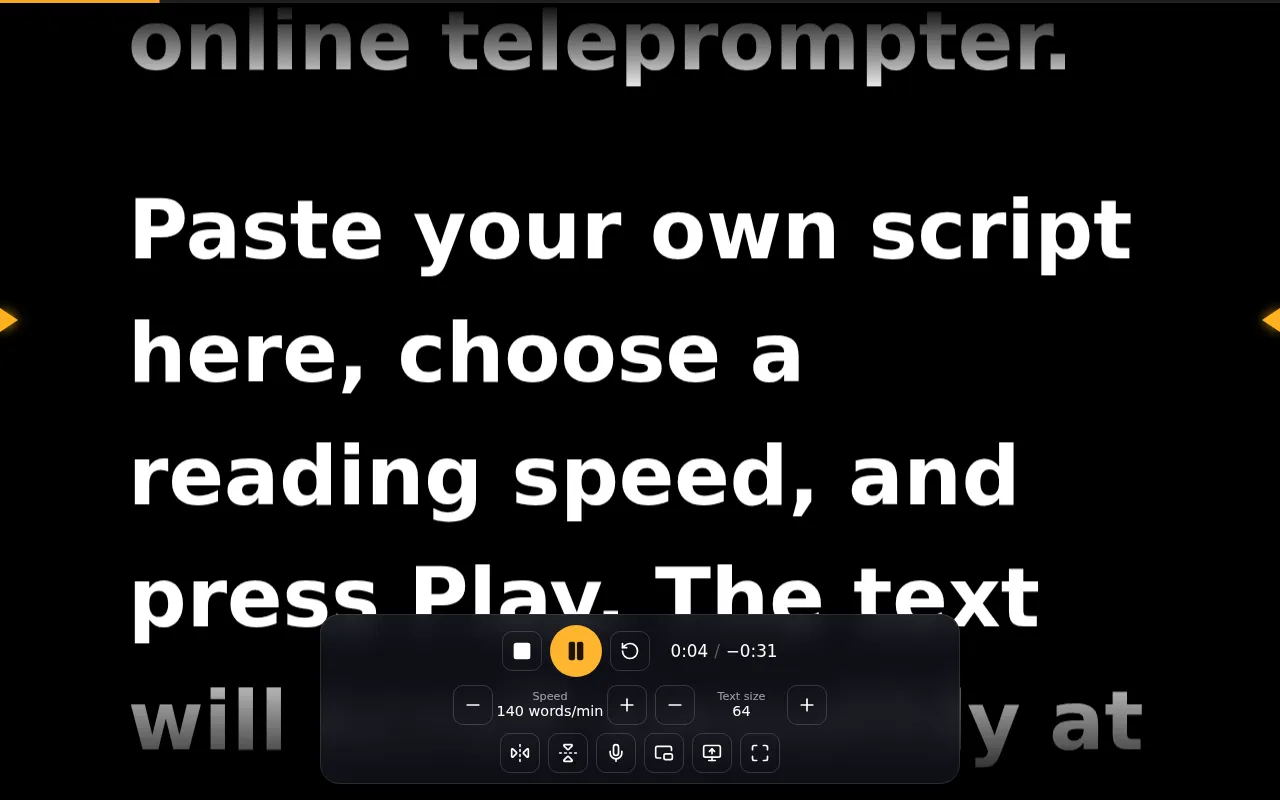
Which teleprompter display mode should you use?
Pick the mode that matches where your eyes need to be. If the computer screen is all you need, use full screen. If another app has to stay visible, float the script above it. If a second display faces you, a stage or a camera, send the text there and keep the controls on your laptop.
| Mode | Best for | How to open | Browser support | How you control it |
|---|---|---|---|---|
| Full screen | Reading from one screen: speeches, rehearsals, recordings | Full screen button in the control bar, or F | Chrome, Edge, Firefox, Safari (not iPhone) | Keyboard, clicker or touch on the same screen |
| Floating window | Reading over slides, a video call or a recording app | Floating window button in the editor or the control bar | Chrome and Edge on desktop only | Keys and buttons inside the floating window |
| Second screen | External monitor, stage monitor, prompter monitor on a rig | Second screen button in the editor or the control bar | Desktop Chrome, Edge, Firefox, Safari; automatic placement in Chrome and Edge | From the main window; keys pressed on the second screen are sent back |
How do I make the teleprompter full screen and keep the screen awake?
Click Play, then press F or the Full screen button at the right of the control bar. Press F again, or Exit full screen, to return. The control bar hides itself 2.5 seconds after scrolling starts and comes back when you move the mouse or press a key.
While the prompter is open, LumiPrompter asks the browser to keep the screen awake (the Screen Wake Lock API), so a laptop or tablet does not dim halfway through your script. If you switch tabs and come back, it asks again. Current versions of Chrome, Edge, Safari and Firefox support it.
iPhone Safari does not allow web pages to go full screen, so the button is hidden there; the prompter still fills the browser window. For laptop setups and screen sizes, see the teleprompter for PC and Mac guide.
Battery saver or low power mode can refuse the wake lock. Plug in the laptop, or turn power saving off, before a long take.
How do I keep the teleprompter always on top of other windows?
The floating window uses Document Picture-in-Picture, a browser feature that opens a small window which stays above every other app. It is available in Chrome and Edge on Windows, macOS, Linux and ChromeOS. In other browsers the button does not appear.
- Open LumiPrompter in Chrome or Edge on your computer and paste or type your script.
- Click Floating window under the script. The prompter opens in a small window (520 × 340 pixels to start) that stays on top.
- Drag the window where you need it, for example just below your webcam or beside your slides, and resize it from any corner.
- Click inside the floating window and press
Spaceto start;↑and↓change the speed,+and-the text size. - To bring the script back, click the Floating window button again (Back to full window) or close the small window.
Escleaves the prompter.
The floating window keeps scrolling at full smoothness even when the main tab is hidden behind your call or slides, because it runs on its own clock.
How do I show the teleprompter on a second monitor?
Second screen opens a separate display window that only shows the text. As soon as it connects, the main window becomes a remote control: no scrolling text, just large buttons, the timer and a preview of the line being read, so an operator can follow the speaker. Both windows talk directly inside your browser, with no server and no account. The button is offered on computers, not on touch-only phones and tablets.
- Connect the second monitor, stage monitor or prompter monitor and set it to extend your desktop (not duplicate).
- Write or paste your script in LumiPrompter, then click Second screen.
- In Chrome or Edge, allow the browser to manage windows on all your displays: the window then moves to the other screen and fills it. Otherwise, drag it there yourself.
- On the second screen, click the Click for full screen button, or press
Fwhile that window is focused. - Drive everything from the remote in the main window: Play, back and forward, sections, speed, text size, Mirror and Flip. The display follows frame by frame, and Show the text here brings the text back to the laptop.
Can I float a teleprompter over slides or a video call?
Yes. Because the floating window stays above every app, it works over PowerPoint, Keynote and Google Slides, including their presenter view. Put it at the top of the screen you look at, keep it a few lines tall, and use a large text size so a glance is enough.
The same window sits above Zoom, Microsoft Teams, Google Meet or a recording app. Placement under the webcam, screen sharing and eye contact during calls are covered in the teleprompter for video calls guide. To keep your eyes even closer to the lens, combine it with eye-line mode.
- Presenting from slides: floating window on your laptop, slides on the projector.
- Presenter laptop and stage monitor: second screen on the confidence monitor at the front of the stage, controls on the lectern laptop.
- Webinar or recorded demo: floating window above the app you are demonstrating.
How do I run a prompter monitor on a camera rig?
A beam-splitter teleprompter reflects a monitor in angled glass, so the text must be reversed. Connect the rig’s monitor as a second screen, open Second screen and turn on Mirror (M); use Flip if the monitor is mounted upside down. Mirror and Flip apply to both windows, so the operator sees the same image as the glass. The camera teleprompter and mirror mode guide explains rigs and glass in detail.
With a second screen, one person can drive while another reads. The operator keeps the main window on a laptop and adjusts the speed by ear, while the talent only sees the text on the prompter monitor. If a presentation clicker or foot pedal is paired with the computer, it works whichever window has focus: keys pressed on the second screen are sent back to the main window. See remote control with clickers and pedals for the key list.
Set the text size for the reading distance on the rig, not on the laptop. Two to three metres away usually needs much larger text than you expect; the font size guide gives starting values.
Why won’t the floating window or second screen open?
Most problems come from the browser, not the script. Check these in order:
- No Floating window button: you are in Firefox, Safari, or on a phone or a window narrower than 820 pixels. Use Chrome or Edge on a computer, or use Second screen instead.
- Second screen does nothing: the browser blocked the popup. Allow popups for lumiprompter.com in the address bar, then click Second screen again.
- The display window opens on the wrong screen: you declined window management, or your browser does not offer it. Drag the window to the other display, then click Click for full screen.
- The display window says it is waiting: start the prompter from the main window with the Second screen button; the display joins as soon as it receives the script.
- Second screen is missing on a tablet: it is only offered on devices with a mouse or trackpad.
Frequently asked questions
- What is a floating teleprompter?
- It is a teleprompter window that stays on top of every other app, so you can read your script over slides, a video call or a recording tool. In LumiPrompter it opens with the Floating window button in Chrome or Edge on a computer.
- Can I use a teleprompter on a second monitor for free?
- Yes. LumiPrompter’s Second screen mode shows the text on another display while you control it from the main window, with no account, no watermark and no app to install.
- Does the floating teleprompter work in Firefox or Safari?
- No. The floating window relies on Document Picture-in-Picture, which only Chrome and Edge on desktop support. In Firefox or Safari, use full screen or the Second screen mode instead.
- How do I stop my screen from turning off while I read?
- You do not need to change any setting. While the prompter is open, LumiPrompter asks the browser to keep the screen awake; battery saver modes can refuse this, so plug in for long sessions.
- Can someone else control the teleprompter while I read?
- Yes. Open Second screen: the reader gets the text on the prompter screen and the laptop turns into a remote control with a preview of the current line, so an operator can follow along. A clicker paired with the same computer also works if the reader prefers to drive it alone.
- Does the floating window keep scrolling when I switch to another app?
- Yes. It scrolls on its own clock, so the text keeps moving smoothly while your call, slides or recording app are in front.