
Features
How to keep eye contact while reading a script on camera
To keep eye contact while reading a script, put the line you read as close to the camera lens as possible, keep the text column narrow and sit a little farther back. LumiPrompter’s eye-line mode does the first part for you: it moves the reading line to just under your webcam, so your eyes stay a few degrees from the lens instead of dropping to the middle of the screen.
Last updated:
Why do your eyes give away that you’re reading?
Viewers don’t notice that you read; they notice where your eyes point. On a laptop the webcam sits above the screen, and a normal teleprompter keeps the reading line around the middle. On a 14-inch screen that is about 8 cm below the lens, so at 60 cm your eyes point roughly 7–8 degrees down: enough to look like you are reading notes.
Two things shrink that angle: a shorter distance between the lens and the reading point, and a longer distance between you and the screen. Width matters too. With wide lines your eyes sweep left and right on every line, and that side-to-side scanning is the clearest sign of reading.
- Vertical: reading line 8 cm below the lens at 60 cm ≈ 7.6°; at 4 cm ≈ 3.8°; at 4 cm and 90 cm ≈ 2.5°.
- Horizontal: a 25 cm line at 60 cm makes your eyes travel about 11° to each side; a 9 cm line, about 4°.
- Rule of thumb: offsets of a few degrees usually still read as eye contact on a webcam; beyond that, people see you looking away.
What does eye-line mode do in LumiPrompter?
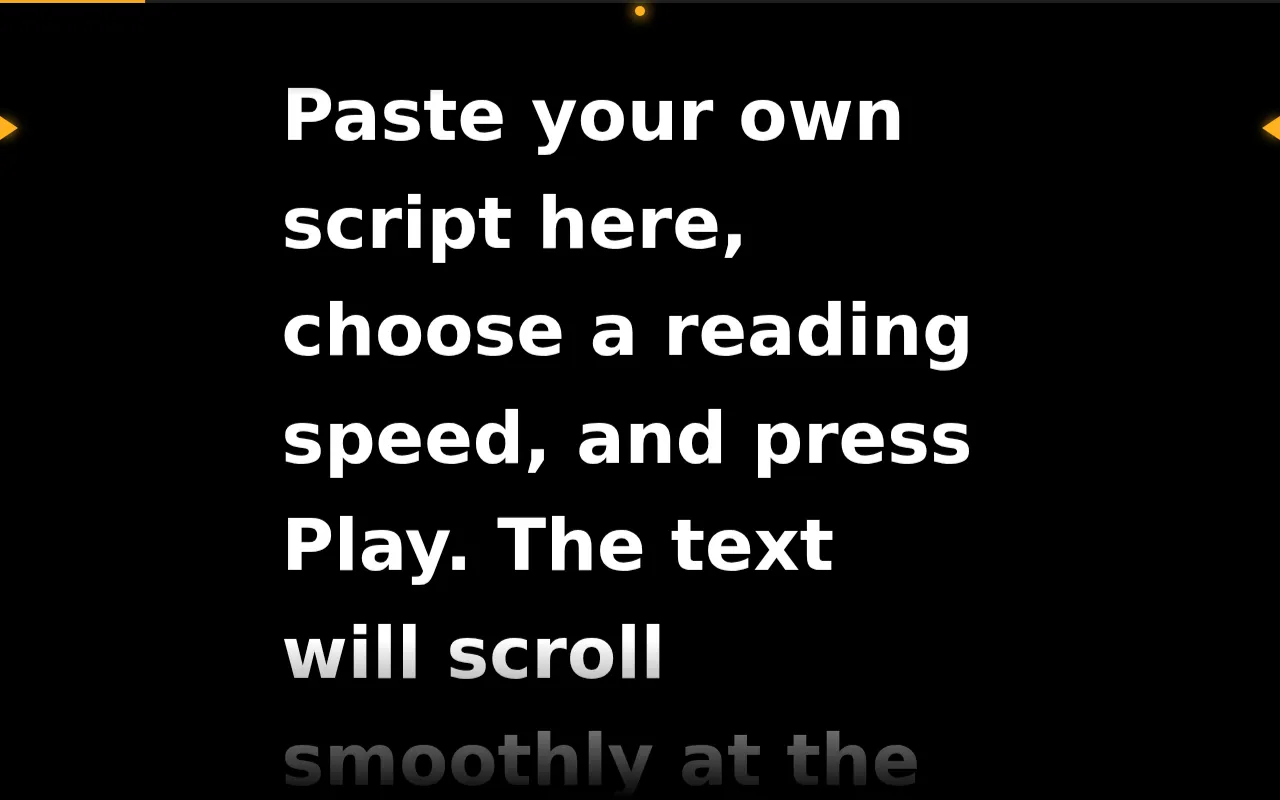
Normally LumiPrompter places the reading line at 40% of the screen height, a comfortable spot for reading. When you turn on Eye-line (camera at top), the reading line moves up to 16% of the height, just below where a built-in webcam sits. The text scrolls so that the words you are reading always pass that line.
A small orange dot glows at the top centre of the screen as a reminder of where the lens is. Everything else works as usual: fixed speed, voice follow, pauses, keyboard shortcuts and recording. LumiPrompter doesn’t touch your camera image; it only changes where the text is, so your eyes travel less.
Eye-line mode assumes the camera is at the top of the screen, which is true for almost every laptop and for webcams clipped on a monitor. If your camera is somewhere else, place the window or screen so its top edge is next to the lens.
How do I set up eye-line mode with a laptop or desktop webcam?
The whole setup takes about a minute. The settings are saved in your browser, so next time you only press Play.
- Open the teleprompter and paste or type your script in the editor.
- Below the editor, turn on
Eye-line (camera at top). LeaveReading lineon so you can see the markers. - Set
Marginsto 30–40% for a narrow column, andText sizeto 48–64 so each line holds only a few words. - Choose a
Speed: 140 words/min is an average speaking pace. Or turn onVoice followso the text waits for you. - Press
Play, then pressFfor full screen so the top of the text sits right under the webcam, not under the browser’s tab bar. - Press
Spaceto start. Read on the line just below the orange dot, and keep your head still.
Which setup gives the most natural eye contact?
The closer the text is to the lens, the better the eye contact. The figures below are approximate, for a 14-inch laptop at 60 cm unless stated otherwise.
| Setup | Eyes from the lens | How it looks on camera |
|---|---|---|
| Laptop webcam, reading line in the middle | About 7–8° down | Visibly looking down at notes |
| Laptop webcam with eye-line mode and 35% margins | About 3–4°, under 3° at 90 cm | Close to eye contact for most viewers |
| Large monitor, webcam on top, eye-line mode | About 5° at 70 cm on a 27-inch screen | Good if you sit back; better with a small window under the camera |
| Script on a second monitor beside the camera | 20° or more to the side | Clearly reading off-camera |
| Phone or tablet right under the lens | About 3–4° held 40 cm away | Good, as long as the device touches the lens edge |
| Beam-splitter glass in front of the lens | Close to 0° | True eye contact: see camera teleprompter and mirror mode |
How do you read a script without looking like you’re reading?
Placement does most of the work, but a few habits make the rest invisible. They all aim at the same thing: fewer and smaller eye movements.
- Narrow the column. Margins of 30–40% keep lines to 4–7 words, so your eyes barely scan sideways.
- Use a medium text size. Huge text means more lines and more scrolling; tiny text makes you squint. See font size by distance for numbers.
- Sit farther back. Going from 50 to 90 cm almost halves the angle, and a medium text size is still readable there.
- Slow down. At 110–140 words/min you can look up between phrases; with voice follow the text never runs ahead of you.
- Mark breathing points with [PAUSE] and rehearse once, so you know what comes next and read in phrases, not word by word.
Before an important recording, set Record to Video, read 30 seconds and watch it back. You will see at once whether your eyes drift, and the file stays on your device.
Can I keep eye contact while reading during a Zoom or Teams call?
Yes. Turn on eye-line mode, start prompting, then click Floating window in the prompter bar. The script opens in a small always-on-top window that you can drag right under your webcam, over Zoom, Teams, Google Meet or your slides. The floating window needs Chrome or Edge on a computer.
Make the window wide and short, centred under the lens, so only two or three lines show at a time. For a separate display or a glass rig, use Second screen instead. Details are in floating window and second screen and in the video call guide.
Is eye-line mode the same as AI eye contact correction?
No. Tools such as NVIDIA Broadcast’s Eye Contact, Windows Studio Effects and Apple’s Eye Contact setting in FaceTime use AI to redraw your eyes in the video so they appear to look at the lens. They can work well, but they modify your image, need specific hardware or apps, and can look odd when you turn your head or blink.
LumiPrompter takes the opposite approach: it never alters or uploads your video. It reduces how far your eyes have to move, so the eye contact on camera is real. You can combine both if you want, but with a good setup most viewers will not notice that you are reading.
Frequently asked questions
- How do I look at the camera while reading a script?
- Put the text right under the lens. In LumiPrompter, turn on Eye-line (camera at top): the reading line moves to just below your webcam, so your eyes stay a few degrees from the lens.
- Where should a teleprompter be placed for eye contact with a webcam?
- As close to the lens as possible, ideally directly below it. On a laptop, use full screen with eye-line mode, or a small floating window touching the bottom edge of the camera.
- Why do I look like I am reading on camera?
- Usually because the text is too far below the lens or the lines are too wide. Move the reading line up, narrow the margins to 30–40% and sit farther from the screen.
- Does LumiPrompter change my eyes in the video like AI eye contact tools?
- No. LumiPrompter never edits or uploads your video. It moves the text close to the camera so your real gaze stays near the lens.
- Does eye-line mode work with an external webcam?
- Yes, if the webcam sits on top of the screen you read from. If it is mounted elsewhere, place the prompter window so its top edge is next to the lens.
- Is eye-line mode free?
- Yes. Eye-line mode is part of the free LumiPrompter teleprompter, with no account, no watermark and no ads.