
Features
Free teleprompter app for your phone and tablet, even offline
LumiPrompter is a free teleprompter app for iPhone, iPad and Android that runs in the browser and installs to your home screen in a few taps, with no app store, account, subscription or watermark. Once installed it keeps working without a connection, and your script and settings stay on the device. Voice follow, mirror mode and front-camera recording all work on mobile.
Last updated:
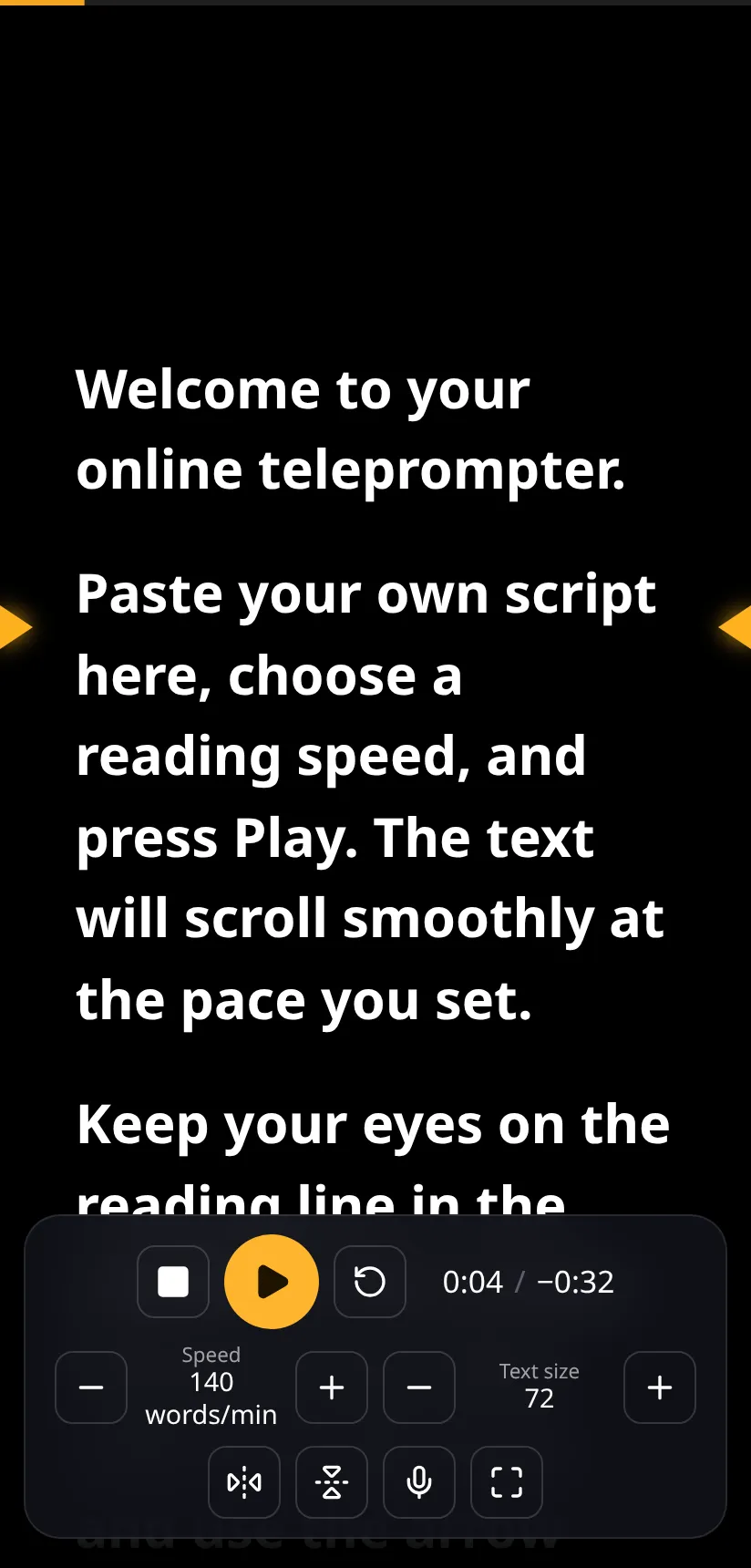
Is there a free teleprompter app for iPhone and Android?
Yes. LumiPrompter is a web app: you open it in Safari or Chrome and can add it to your home screen, where it behaves like an installed app with its own icon and a full-screen window. There is nothing to download from an app store and nothing to update by hand.
Many native teleprompter apps are free to download but ask for an account, put a watermark on recordings or move features behind a subscription. LumiPrompter has none of that: every feature is free, and it works the same on a computer (see the teleprompter for PC and Mac).
- No account and no sign-in: open it and paste your script.
- No subscription, no in-app purchases, no ads.
- No watermark on your audio or video recordings.
- One app for phone, tablet and computer.
How do I install the teleprompter on my phone or tablet?
Installing is optional; the prompter works in a normal browser tab too. The home-screen app opens without the address bar, which gives your script more room, especially on iPhone.
- Open www.lumiprompter.com while you are online: in Safari on an iPhone or iPad, in Chrome on Android.
- iPhone or iPad: tap the Share button (the square with an arrow; on recent iOS versions it can sit in the ••• menu).
- Scroll down the share sheet, tap Add to Home Screen, then Add.
- Android: in Chrome, tap the ⋮ menu, then Install app (on some phones: Add to home screen, then Install).
- Open LumiPrompter from its new icon. It starts full screen, like any other app.
- Paste your script and press Play once while still online, so everything the prompter needs is stored for offline use.
On iPhone and iPad the home-screen app keeps its own storage, separate from Safari. A script you typed in Safari will not appear in the installed app: paste it again there.
Does the teleprompter app work offline?
Yes. A service worker stores the app page and its files on your device: pages load fresh from the network when you are online and from that copy when you are not. Airplane mode in a studio or on a train does not stop the prompter.
Your script and settings (speed, text size, mirror, colour…) are saved in the browser’s local storage on the device, and recordings in its database. Nothing is uploaded and there is no cloud copy, so keep a backup of important scripts and download recordings you want to keep.
- Offline: editing, scrolling, speed and size controls, mirror and flip, countdown, audio and video recording, saved recordings.
- Needs one online use first: opening a
.docx,.odtor subtitle file, because the converter loads the first time you import. - May need a connection: voice follow. Chrome on Android sends speech to Google’s recognition service, so it needs internet. Safari uses Apple’s speech recognition, which works on the device for some languages and settings; do not count on it offline.
Which features work on iPhone, iPad and Android?
The core prompter is the same everywhere. A few features depend on what the browser allows: the floating window and the second screen are made for computers, and iPhone Safari has no full-screen button for web pages, which is one more reason to install the app there.
| Feature | iPhone (Safari) | iPad (Safari) | Android (Chrome) | Computer (Chrome, Edge) |
|---|---|---|---|---|
| Voice follow | Yes | Yes | Yes | Yes (not Firefox) |
| Audio and video recording | Yes, front camera | Yes, front camera | Yes, front camera | Yes, webcam |
| Full-screen button | No (install the app) | Yes | Yes | Yes |
| Floating window | No | No | No | Yes |
| Second screen | No | No | No | Yes |
| Works offline | Yes | Yes | Yes | Yes |
| Screen stays awake | Yes (iOS 16.4+) | Yes (iPadOS 16.4+) | Yes | Yes |
| Install as an app | Add to Home Screen | Add to Home Screen | Install app | Install icon in the address bar |
What text size works on a small screen?
Text size scales with the width of the screen, so the same setting looks smaller on a phone than on a laptop. On a phone about 390 px wide held upright, the default size 64 gives letters of roughly 25 px; turned sideways (about 844 px), the same setting gives about 54 px. Text never drops below 16 px.
Use the Text size slider (20 to 160) in the editor, or the − and + buttons in the control bar while reading (4 steps per tap). Lower the Margins to 0–5 % on a phone to fit more words per line. The font size and layout guide gives sizes by reading distance.
Hold the phone in landscape for reading at arm’s length or further: the text is about twice as large and each line still holds a few words.
Can I use a phone or tablet in a teleprompter rig?
Yes. In a beam-splitter rig the screen lies under angled glass, so the text has to be reversed: tap Mirror in the control bar, and Flip as well if your rig reflects it upside down. The camera teleprompter and mirror mode guide covers rigs and setup.
A tablet is the better screen for a rig: an iPad or a 10–11 inch Android tablet shows larger text at camera distance than a phone. A phone suits small rigs for phone or compact cameras, read at under a metre.
Once the device is inside the rig you cannot reach the screen. Pair a Bluetooth keyboard, presentation clicker or page-turner pedal: Space plays and pauses, the arrow keys change speed and scroll. See remote control for the teleprompter.
Can I record video with the phone camera while reading?
Yes. In the editor, set Record to Video, then press Play: the front camera films you while the script scrolls over the camera image (turn off Camera background for plain black). Audio-only recording works the same way.
Recordings are saved on the phone, listed under Recordings with Download and Delete buttons, without a watermark. On iPhone, downloads go to the Files app. Details on formats and quality are in teleprompter with recording.
Tips for prompting from a phone or tablet
While the text scrolls, the control bar hides after 2.5 seconds. Swipe the text gently to bring it back; dragging also moves through the script.
- Turn on Do Not Disturb or a Focus mode so calls and notifications do not cover the text or interrupt a recording.
- The screen stays awake while the prompter runs (Screen Wake Lock). If it still dims, check battery saver, update iOS, or set Auto-Lock to Never for the session.
- Put the phone on a stand at eye level, close to the camera lens, so your gaze does not drop.
- Close other apps that use the microphone or camera before turning on voice follow or recording.
- Charge the device: a bright screen plus camera recording drains the battery quickly.
What you need: a stand or tripod
A phone or tablet held in the hand moves with every word, which makes the text harder to read and the video harder to watch. A stand keeps the screen still at eye level, and when the same device films you, a tripod puts the lens where your eyes are. Check the widest device the holder takes, especially for tablets, and that it turns to portrait and landscape.
- Phone tripod with a remoteExtends to eye height and holds the phone either way up; many come with a small Bluetooth shutter for starting a recording.See on Amazon
- Desk tablet standHolds a tablet steady next to or below the camera when you read at a desk. Look for a heavy base and an adjustable angle.See on Amazon
- Tripod mount for a tabletA clamp with a standard tripod screw, so the tablet can stand on a tripod right beside the camera or inside a rig.See on Amazon
As an Amazon Associate, LumiPrompter earns from qualifying purchases. We don’t test or rank products: the examples show what to look for.
Frequently asked questions
- Is there a free teleprompter app for iPhone?
- Yes. LumiPrompter is free on iPhone: open it in Safari and add it to your home screen. There is no account, subscription or watermark.
- Is there a free teleprompter app for Android without a watermark?
- Yes. LumiPrompter runs in Chrome on Android, installs with Install app, and records audio and video without any watermark.
- Does the teleprompter app work offline?
- Yes, once you have opened it online. The app and your script are stored on the device. Voice follow may still need a connection, depending on the browser.
- Can I use my iPad as a teleprompter?
- Yes. Open LumiPrompter in Safari, paste your script and press Play. Turn on Mirror if the iPad sits under the glass of a camera rig.
- Does voice follow work on a phone?
- Yes, in Safari on iPhone and iPad and in Chrome on Android. Allow microphone access when asked. Firefox does not support it.
- Is my script uploaded anywhere?
- No. The script and settings are saved in the browser storage on your device, and recordings never leave it unless you download and share them.